Enhance YouTube TV with iSponsorBlockTV
Automatically skip sponsorships, introductions, and ads in YouTube videos on your TV using iSponsorBlockTV, a lightweight self-hosted application powered by the SponsorBlock API.
What is iSponserBlockTV?
Watching YouTube on the big screen is great. Adverts are clearly an important part of keeping the platform running and supporting creators, but that doesn’t change the fact that repeated sponsorship segments and introductions can quickly become frustrating.
iSponsorBlockTV is a self-hosted application that connects to your YouTube TV app as a remote control and automatically skips specific video segments using the SponsorBlock API. These segments can include sponsorships, self-promotion, introductions, and more.
For me, this works particularly well because I already manually skip sponsorships. Having a service that does this automatically — and can also trigger the “Skip Ad” button the moment it becomes available — removes that friction entirely.
Implementation
To deploy iSponsorBlockTV, I’m using Docker. The application is lightweight and well-suited to running continuously in a homelab environment.
Start by creating the required configuration file. The following command runs the container in setup mode and launches an interactive configuration wizard:
docker run --rm -it \
-v isponserblocktv_config:/app/data \
--net=host \
-e TERM=$TERM -e COLORTERM=$COLORTERM \
ghcr.io/dmunozv04/isponsorblocktv --setup
Device Setup
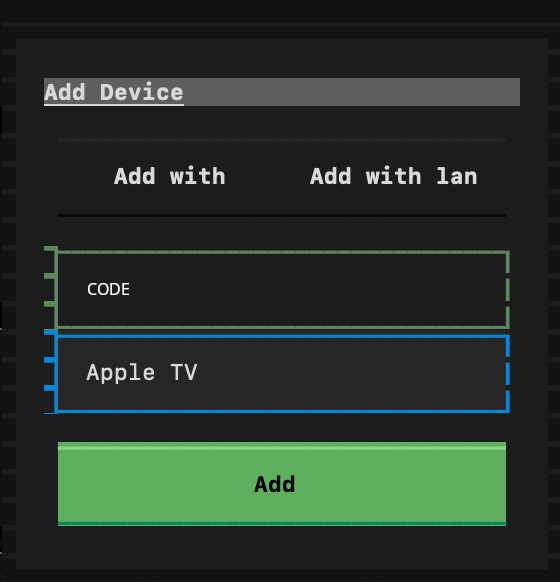
The first step is adding a device. In my case, this is my TV.
On your YouTube app, navigate to Settings → Link with TV code, then enter the displayed code into the setup wizard and give the device a name.
Skip Categories
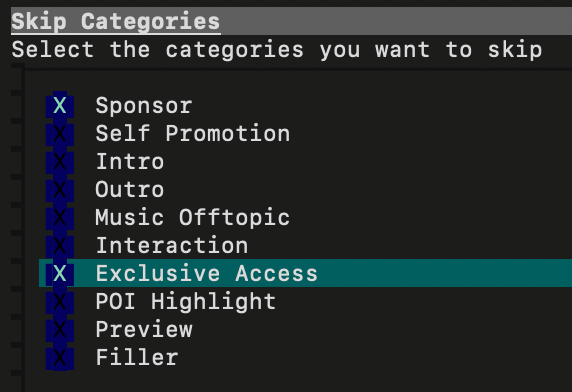
Next, select which categories you want to skip. I’ve chosen:
- Sponsor
- Exclusive Access
Skip Behaviour
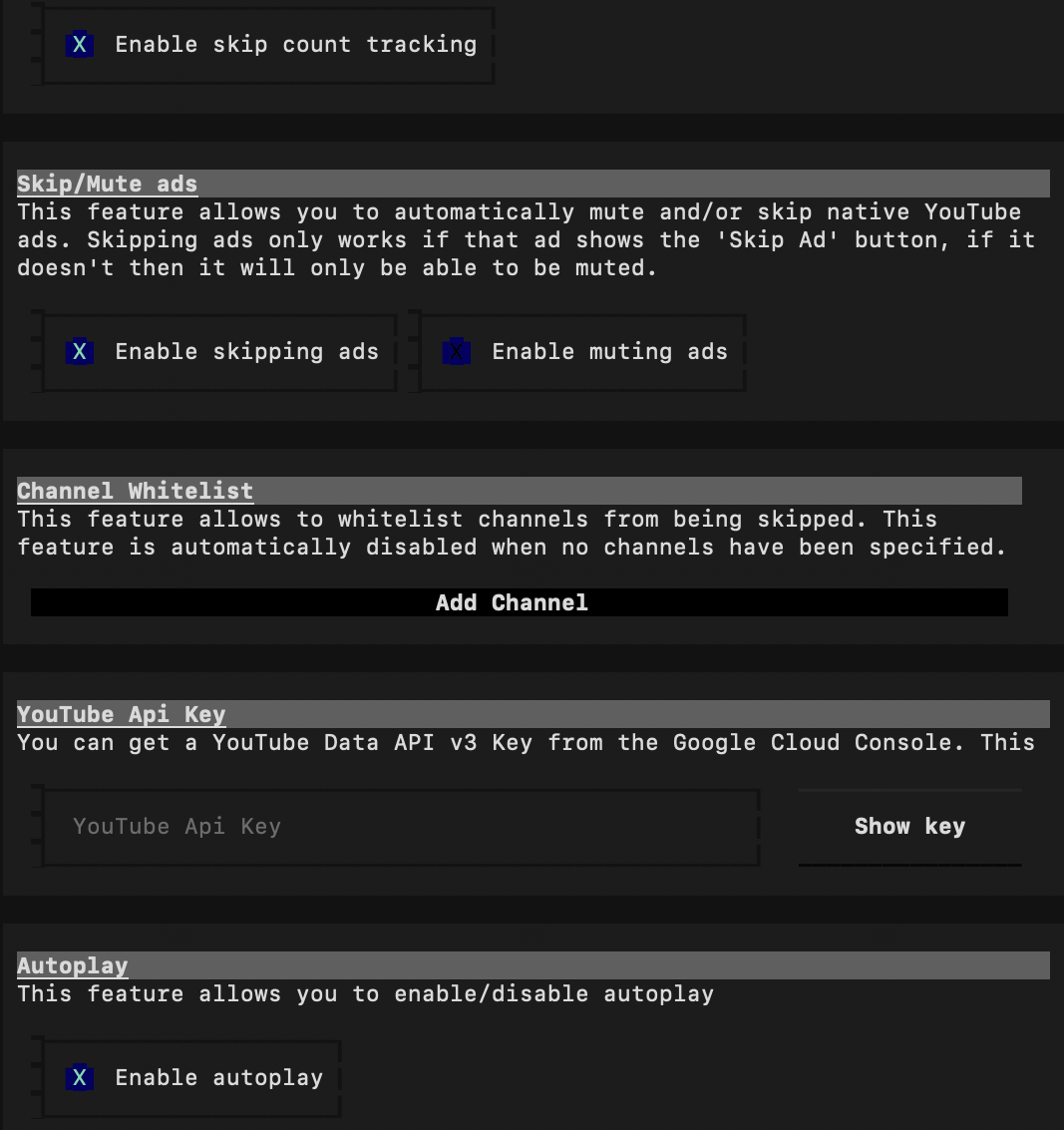
I’ve mostly kept the default settings, with one notable exception: enabling Skip Ads, which presses the “Skip Ad” button automatically as soon as it appears.
Once complete, save and exit. This creates the persistent Docker volume that stores the configuration.
Docker Compose Deployment
Below is a simple Docker Compose example using the previously created configuration volume:
volumes:
  config:

services:
  iSponsorBlockTV:
    image: ghcr.io/dmunozv04/isponsorblocktv
    container_name: iSponsorBlockTV
    restart: unless-stopped
    volumes:
      - config:/app/data
After starting the container, you should see iSponsorBlockTV listed under Settings → Linked Devices in the YouTube TV app. Container logs will also show activity when videos are playing and segments are skipped.
If you need to make changes later, the configuration lives in a simple config.json file inside the Docker volume.
Example configuration:
{
    "devices": [
        {
            "screen_id": "DEVICE ID NUMBER REMOVED",
            "name": "Apple TV",
            "offset": 0
        }
    ],
    "apikey": "",
    "skip_categories": [
        "sponsor",
        "exclusive_access"
    ],
    "channel_whitelist": [],
    "skip_count_tracking": true,
    "mute_ads": false,
    "skip_ads": true,
    "minimum_skip_length": 1,
    "auto_play": true,
    "join_name": "iSponsorBlockTV",
    "use_proxy": false
}
Container Resource Usage
Because this service runs continuously, resource efficiency matters to me.
I was pleasantly surprised by how lightweight iSponsorBlockTV is when running under Docker.
| Item | Consumed |
|---|---|
| Image Size | 63.2 MB |
| RAM | ~44 MB |
| CPU | 0-1% |
| I/O Read | ~7 MB |
| I/O Write | ~0 MB |
| Network RX | ~307 kB |
| Network TX | ~109 kB |
This container is running with 2 vCPUs on a host powered by an AMD Ryzen 7 7730U, with storage backed by a NAS-based root disk.
Conclusion
iSponsorBlockTV brings a noticeable quality-of-life improvement to watching YouTube on a TV, while still respecting the platform’s ad model and creator support.
If you regularly watch YouTube on smart TVs, streaming boxes, or consoles, this is a simple and effective service to self-host. For desktop users, the SponsorBlock browser extension remains a great complementary option.